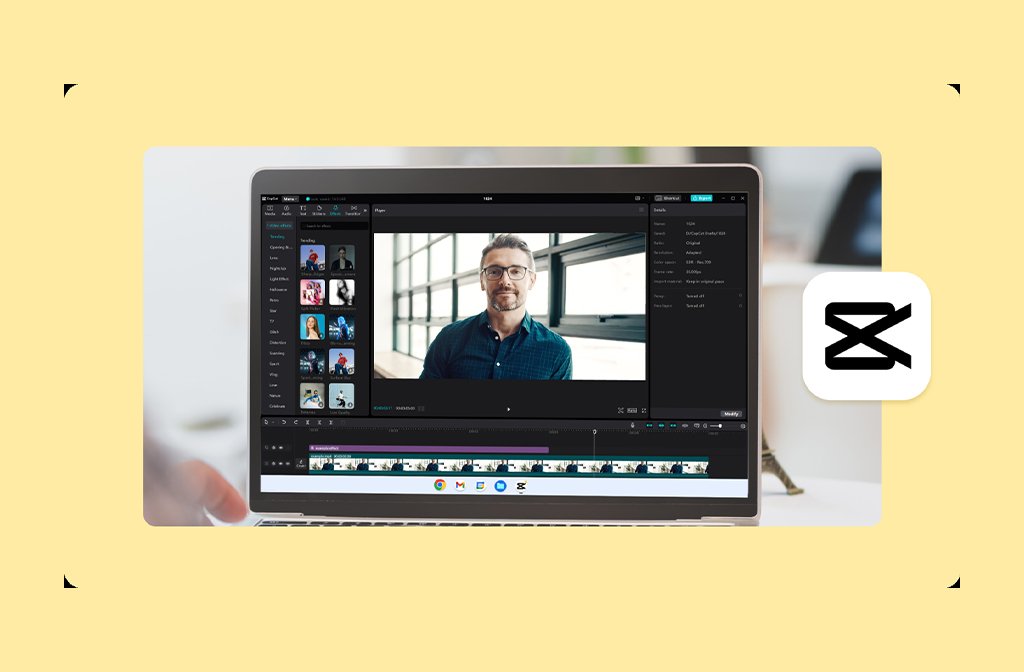
Giving a school presentation can be scary, especially if you’re shy, feeling under the weather, or speaking in front of a crowd isn’t your thing.
What if there were a way to present your work without even saying a word? With CapCut’s AI voice tools, you can now narrate your school projects without speaking a word.
CapCut Desktop, a free video editor, offers powerful AI features, including Text to Speech AI, which instantly converts your typed script into a natural-sounding voiceover. You type what you want to say, pick a voice style, and let CapCut do the talking.
This feature isn’t just for influencers or marketers – it’s perfect for students who want to level up their project presentations.
Why use CapCut AI to narrate school projects?
No more stage fright
Some students freeze up when it’s time to speak. With AI Voice Generator, you can prepare your script calmly at home, and your digital voice will speak confidently for you – no anxiety, no shaky voice – just precise, consistent delivery.
Great for group projects
If one person doesn’t want to talk or isn’t available, you can still deliver a unified narration. CapCut lets you pick different voice styles, so each section can have a slightly different tone – perfect for dividing parts in group assignments.
Save time and edit easily
Did you stumble over your words or forget a line when recording? Skip all of that. With CapCut’s AI voice tool, you can tweak your narration anytime by editing the text instead of re-recording.
Free and easy to use
CapCut’s Desktop Video Editor is free editing software that works offline and features a user-friendly interface. You don’t need to be tech-savvy to use it, and no expensive subscriptions or gear are required.
School project ideas that work great with CapCut Narration
- History Timelines: Add narration over images and historical clips
- Science Experiments: Explain the steps without standing in front of the camera
- Language Learning Projects: Use accents or dialect AI voices to simulate different speakers
- Book Reports: Summarize the plot with visuals and background music
- Poster or Infographic Videos: Turn your poster into a narrated explainer video
How to narrate school projects without speaking with CapCut AI
Here’s a quick 3-step guide to using CapCut Desktop for AI narration:
Step 1: Type your script in CapCut
Open CapCut Desktop Video Editor and create a new project. Drag your images, video clips, or slides into the editing timeline. Click on “Text” in the top menu, then choose “Text to speech”. In the box that appears, type your narration for the video segment. You can break
your text into short paragraphs for better timing. Write the way you speak—keep it simple, clear, and friendly.
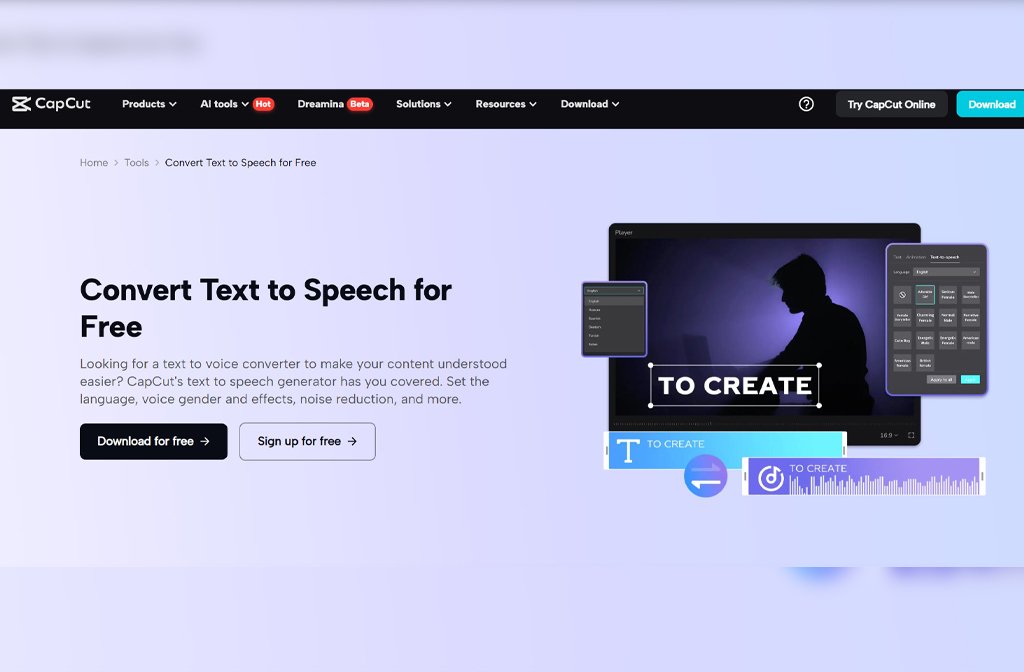
Step 2: Choose an AI voice and style
Once your script is typed, CapCut will give you a list of AI voice options. Choose a voice gender (male/female), accent (US, UK, AU, etc.), and tone (serious, excited, casual). Click “Generate speech” and let CapCut read it for you.
Listen to the preview and make edits if
needed until it sounds just right. For school projects, a clear and calm voice usually works best. Try “Narrator”, “Teacher”, or “Friendly” tones.
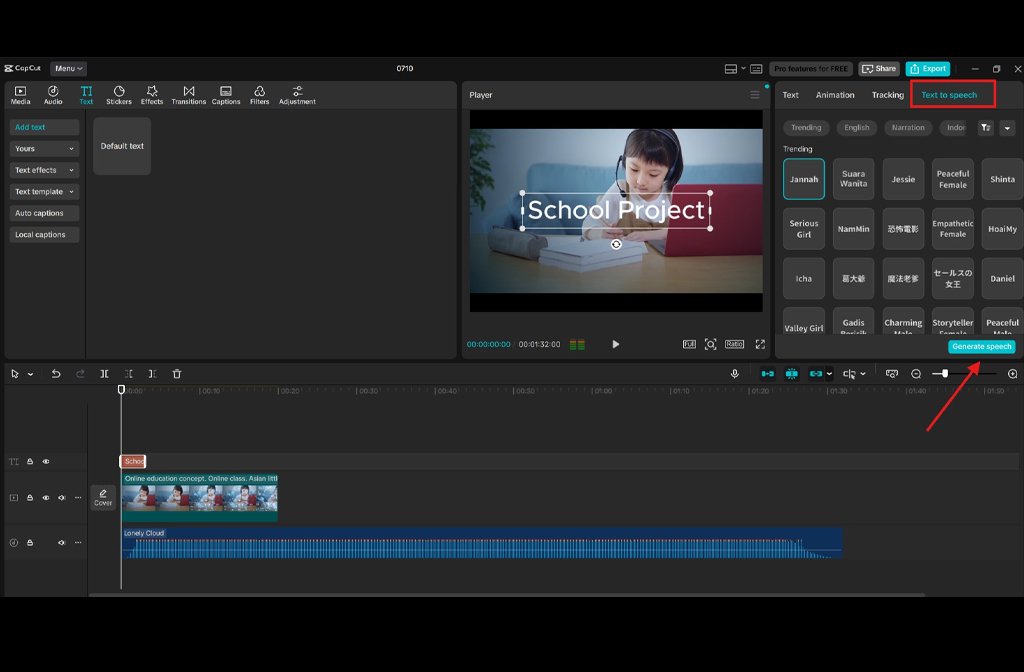
Step 3: Sync the voice with visuals
After generating the voice, it will appear as an audio track in your timeline. Drag and place it to match the right images or clips. Use the “Split” and Adjust tools to perfectly match visuals with voice. Add music, captions, or subtitles if you like—but keep it simple. Add fade-ins and zoom effects to make still images more dynamic. Use AI Video Upscaler to enhance the quality of your project video.
Tips to make AI-narrated projects even better
- Add background music: Use light, royalty-free background music to add energy without overpowering the narration. CapCut has a built-in music library that’s free to use
- Use on-screen text: Reinforce important points by adding on-screen text or bullet points that pop up while the voice is speaking
- Add transitions and zooms: Even if you’re showing slides or images, add smooth transitions, zooms, or pans to keep your viewer’s attention
- Match the voice with the mood: Talking about a historical tragedy? Use a slower, serious tone. Explaining a fun science fact? Use an upbeat voice. CapCut enables you to change voice styles to match the mood instantly
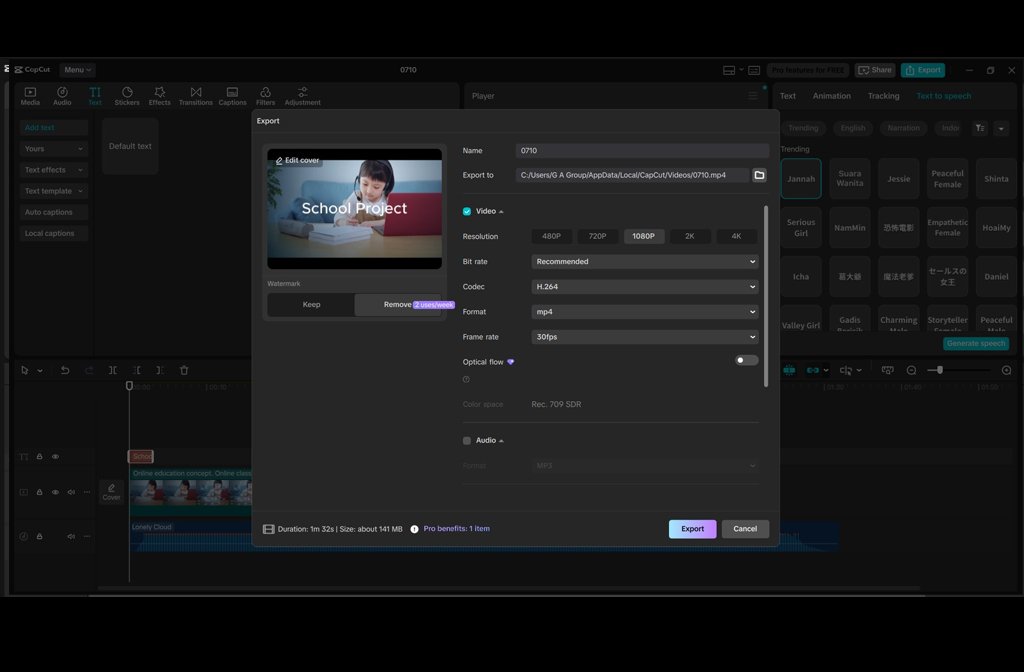
- Export in high quality: When you’re done, export the video in 1080p for best results. You can upload it to Google Drive or PowerPoint, or play it directly from your device during the presentation
CapCut’s AI voice tool is a game-changer for students who want to deliver smooth, confident, and creative presentations—without ever needing to speak.
Whether you’re introverted, short on time, or want your project to stand out, CapCut’s Text to speech AI feature lets you shine with professional results.
By typing out your thoughts and letting AI do the narration, you’re not only saving time but also developing modern digital storytelling skills – a big plus in today’s classrooms and careers.
by Terry Thomas
Advertising feature with CapCut.com